
A digital declutter checklist is useful to me only if I can finish it without turning organization into an entire weekend project. I like clean systems, but I also know how easily cleaning a digital space can become another form of work. I open the downloads folder, notice three old project folders, start renaming files, remember that my bookmarks are a mess, and suddenly I am redesigning an information system instead of clearing the friction that bothered me in the first place.
The version I actually repeat is shorter and less ambitious. I focus on the places that create visible drag during a normal workday: downloads, browser tabs, the desktop, active files, inboxes, apps, and subscriptions. I am not trying to create a perfect archive. I am trying to make tomorrow easier than today.
Digital Declutter Checklist Step One: Clear What Is Visibly In the Way
I start with whatever I can see without searching. That usually means the desktop, the downloads folder, and open browser tabs. These areas accumulate quickly because they are designed for temporary use, but temporary has a way of becoming permanent when I am busy.
I do not spend time deciding the perfect location for every file. Anything obviously disposable goes. Anything active moves to the project where it belongs. Anything I may need later but cannot categorize quickly goes into a temporary holding folder that I can revisit separately.
The point is speed. I want the visible working surface to stop competing for my attention.
This is related to the 15 minute digital reset I already use when everything feels messy, but the checklist here goes one level deeper. The quick reset helps me regain control during a busy week. This longer version is the maintenance pass that prevents the clutter from rebuilding quite as fast.
Close Tabs That Are Pretending to Be Tasks
Browser tabs are one of the strangest forms of digital clutter because many of them are not really information. They are reminders. A tab is often open because I am afraid I will forget to read something, buy something, reply to something, or make a decision.
That is why simply closing every tab does not always work. If the tab represents unfinished work, the unfinished work still exists after the browser is clean.
I use the same principle from my too many tabs open system. I decide whether the tab is part of an active task, reference material I genuinely want to save, or something I am keeping open out of vague anxiety. Active work moves into the project. Useful reference gets saved somewhere searchable. The rest closes.
The goal is not an empty browser. It is a browser where the open tabs correspond to work I am actually doing now.
Clean the Downloads Folder Without Building an Archive
Downloads are easy to ignore because the folder is usually hidden until I need something. Then I search through screenshots, PDFs, invoices, images, installers, and copies of files I already saved somewhere else.
I sort downloads into three decisions: delete, move, or keep temporarily. I do not create ten categories. Files with an obvious home move there. Old installers and duplicate documents go. Items that need a later decision can stay in one temporary folder rather than scattering across the entire downloads directory.
This is one place where I have learned that imperfect organization is still better than delayed organization. A folder called “to sort” is not elegant, but it is more useful than pretending I will make twenty careful filing decisions while I am trying to finish something else.
Review Active Project Files, Not the Entire Archive
I do not use a digital declutter session to clean years of old documents. That is how a thirty minute reset becomes a six hour project.
Instead, I look only at active work. I want to know whether the files I need this week are in obvious places, whether duplicate versions are creating confusion, and whether I can tell which version is current without opening five documents.
This is less about storage and more about restarting work. The expensive moment is not knowing that an old file exists. The expensive moment is returning to a project and spending ten minutes trying to identify what I was using last time.
Give the Inbox a Triage Pass Instead of Chasing Inbox Zero
I have never found much value in treating an empty inbox as a permanent achievement. Email keeps arriving, so an empty inbox is a temporary state by definition.
What I care about is whether important messages are visible and whether messages that require action have somewhere to go. I archive obvious noise, unsubscribe when the same unwanted sender keeps appearing, and make sure anything that requires real work is captured outside the inbox if necessary.
The inbox should help me notice communication. I do not want it to become the only place where I remember what I have to do.
Delete Apps and Extensions I Keep Ignoring
Software clutter is easier to tolerate because unused apps do not always create visible mess. They still add cognitive weight. I see an extension I installed for one experiment, a trial app I have not opened in months, or a browser tool that duplicates something I already use.
I remove the obvious ones. I do not conduct a forensic audit of every application on the computer. I focus on software that I recognize immediately as unnecessary.
The same rule applies to browser extensions. If I do not remember why I installed it, or I have not used it since the week I installed it, it probably does not need permanent access to my browser.
Check Subscriptions While the Tools Are Fresh in My Mind
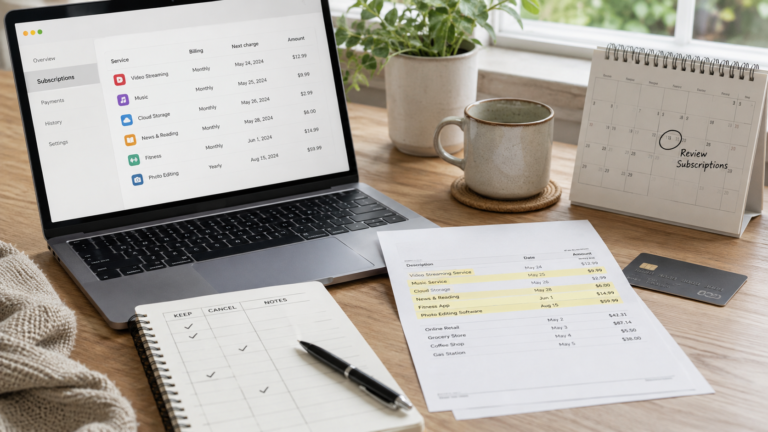
A digital declutter is also a good moment to notice services I no longer use. I do not review every payment each week, but when I see an abandoned app or tool account, I check whether I am still paying for it.
This connects directly to my subscription audit. Quiet monthly charges are easy to miss because they do not create a physical object in the house. Digital clutter and subscription clutter often come from the same behavior: I try something, keep it around just in case, and stop noticing that it is still there.
Stop Before the System Becomes the Project
This is the rule that keeps the checklist useful. I stop when the obvious friction is gone.
I do not redesign folder taxonomies, rebuild Notion, reorganize years of photos, or create a new productivity system during the same session. Those may be valid projects, but they are not a declutter pass.
A digital declutter checklist works for me because it has a narrow purpose. I want fewer things in the places where I work every day, clearer access to active material, and fewer reminders disguised as tabs, files, or subscriptions.
Thirty minutes is usually enough to make a noticeable difference when I focus on what is currently getting in the way. The computer does not need to become perfectly organized. It only needs to stop making simple work harder than it already is.